








How to Fix Dental Scanner Software Installation Failure?
If dental scanner software installation fails, use this checklist before contacting support:
- Download the latest installation package for your scanner from CEDU support and confirm that the download is complete.
- Close the scanner software, restart the computer, and run the installer again from a local folder.
- Confirm that the computer meets the software requirements, has enough free storage, and that your Windows account has permission to install applications.
- Do not connect or disconnect the scanner during installation. After installation, restart the computer before opening the scanning software.
- If the installation still fails, send the exact error message, Windows version, and scanner model to CEDU after-sales support so the team can provide the correct installation package.
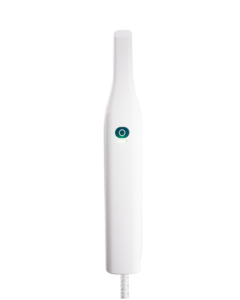
For OScan users, visit the OScan intraoral scanner page for product information and support.